
How to Turn Your iPhone Into a Dumb Phone (Without Buying One)
Derek C.
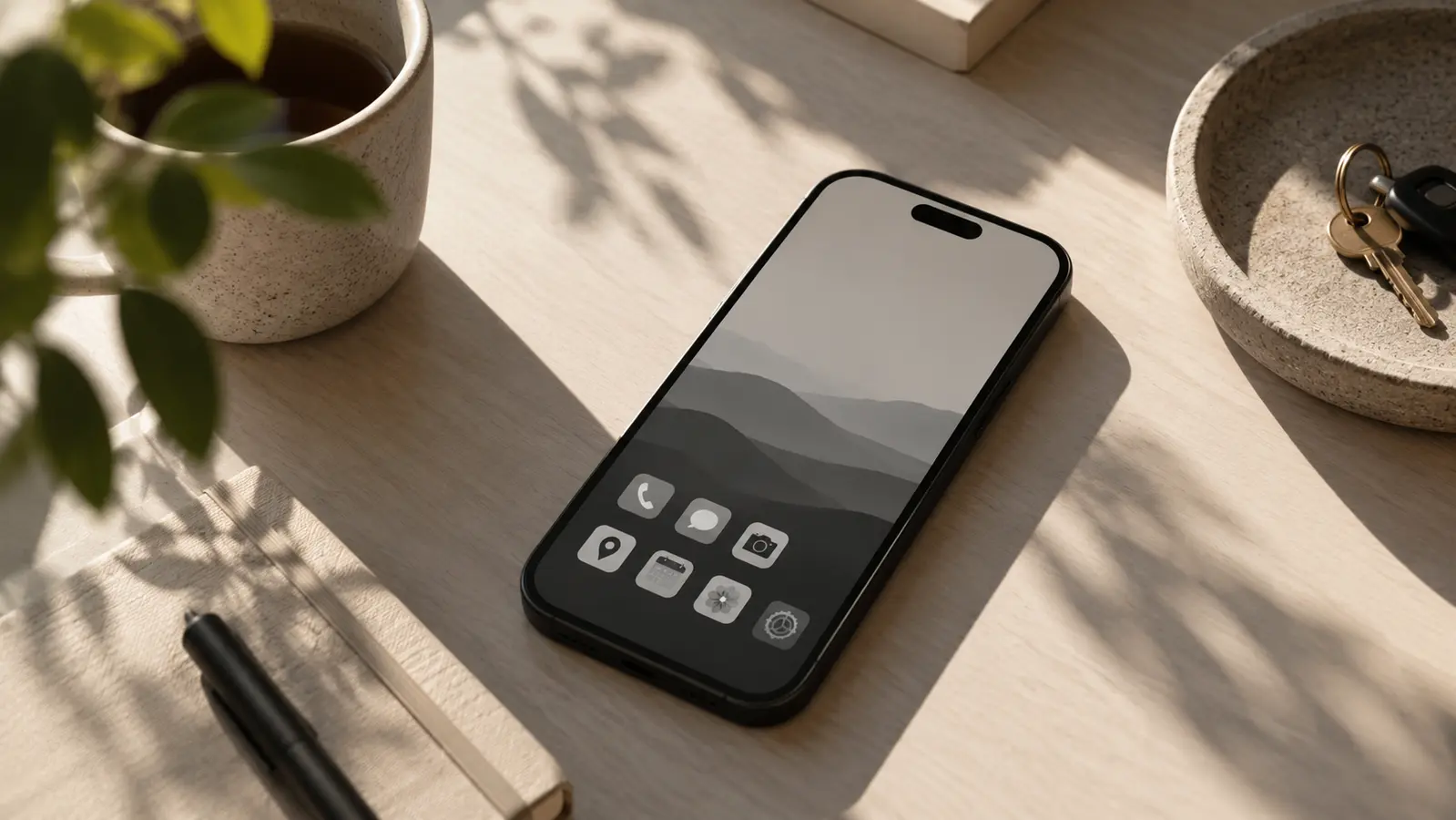
Learn how to turn your iPhone into a minimalist dumb phone without buying a new device. Reduce distractions, simplify your Home Screen, and build healthier screen habits while keeping the apps you need.
You pick up your iPhone to check a message, and before you know it, you're watching videos or scrolling through posts you never planned to open. Sound familiar? If you've ever wished your smartphone were a little less smart, the idea of switching to a "dumb phone" probably sounds pretty appealing.
The problem is that smartphones are genuinely useful. You might rely on yours for directions, banking, two-factor authentication, taking photos, listening to music, or staying in touch with people you care about. Giving all of that up just to avoid a few distracting apps can feel like an unnecessary trade-off.
Fortunately, you don't have to buy a new phone to enjoy a simpler digital life. With a few changes to your existing iPhone, you can keep the features you love while making distractions less accessible. In this guide, we'll walk through seven practical ways to turn your iPhone into a more minimalist device, using mostly free settings you already have.
Can You Really Turn an iPhone Into a Dumb Phone?
Not literally. Your iPhone will still have an internet browser, an App Library, and access to all the powerful features that make it a smartphone. What you can change is how you experience it day to day. By simplifying your Home Screen, limiting notifications, removing unnecessary visual stimulation, and setting boundaries around distracting apps, you can make your phone feel considerably calmer.
Think of it as creating a minimalist iPhone rather than trying to turn it into a traditional flip phone. You still get the convenience of modern technology, but without constantly being reminded of everything you could be checking, watching, or scrolling through.
This is also the approach we believe in at LightScroll. Building healthier screen habits doesn't have to mean getting rid of everything enjoyable about your phone. Often, it's about making a few thoughtful changes to how and when you use it. We explore this idea further in our guide to reducing screen time without deleting every app.
Step 1: Decide Which Apps Actually Matter to You
Before changing anything, spend a few minutes thinking about what you genuinely need your phone for. It's easy to get caught up in the idea of digital minimalism and start deleting everything, but there's no real benefit to making your daily life unnecessarily difficult.
For most people, a handful of apps handle the majority of their essential needs:
- Phone and Messages: Staying connected with friends, family, and colleagues.
- Maps: Finding directions and navigating unfamiliar places.
- Camera: Capturing photos and memories.
- Calendar: Keeping track of appointments and plans.
- Banking and authentication: Managing money and accessing important accounts.
- Music and podcasts: Enjoying content you deliberately choose to listen to.
Your list might look different, and that's perfectly fine. If you use WhatsApp to communicate with family or rely on a specific app for work, there's no reason to remove it. The idea is to identify the technology that genuinely makes your life better, rather than following someone else's definition of what a minimalist phone should look like.
Once you've identified your essentials, think about the two or three apps that tend to take more of your attention than you'd like. Maybe Instagram is your go-to whenever you're bored, or Reddit turns a five-minute break into half an hour. Those are the apps worth focusing on as you simplify your phone.
Step 2: Create a Minimalist, One-Page Home Screen
Your Home Screen is the first thing you see whenever you unlock your iPhone, which makes it a great place to start. If it's filled with social media icons, colorful widgets, and several pages of apps, you're constantly being presented with opportunities to get distracted. Even when you pick up your phone for something specific, seeing those apps can tempt you into opening something else.
A simple Home Screen removes much of that visual noise. Instead of keeping every app within easy reach, try creating a single page that contains only the things you regularly need.
Here's how to set it up:
- Choose one Home Screen page for your essential apps.
- Move everyday tools like Phone, Messages, Maps, Camera, and Calendar onto that page.
- Touch and hold a distracting app, select Remove App, then Remove from Home Screen.
- Hide unnecessary Home Screen pages by touching and holding the wallpaper, tapping the page dots, and deselecting pages you don't need.
- Consider using a plain wallpaper and leaving some empty space.
Apple explains these options in its guide to organizing your Home Screen and App Library.
The important thing to understand is that removing an app from your Home Screen doesn't delete it. The app stays installed and accessible through the App Library, so you can still open it whenever you actually want to use it. You're simply removing the constant invitation to check it.
This small change can make a surprising difference. When Instagram isn't staring at you every time you unlock your phone, opening it becomes a slightly more deliberate decision. It won't eliminate every distraction, but it's a good first step toward making your phone feel like something you control rather than something that's always competing for your attention.
Step 3: Turn Off Notifications That Don't Deserve Your Attention
A clean Home Screen is helpful, but it won't accomplish much if your phone continues buzzing throughout the day. Notifications are one of the easiest ways for apps to pull you back in, even when you weren't thinking about opening them.
Of course, not every notification is a distraction. A message from someone you care about, an appointment reminder, or an important banking alert might be genuinely useful. The problem is all the other notifications that mostly exist to encourage you to open an app again.
You can manage these by opening Settings → Notifications, choosing an app, and switching off Allow Notifications for anything you don't need. Start with social media suggestions, promotional messages, shopping alerts, and entertainment recommendations. There's no need to disable everything at once, and you can always make adjustments later.
If you're unsure whether a particular notification is worth keeping, ask yourself whether it tells you something important or simply invites you back into an app. It's a useful distinction because your phone should be able to reach you when something matters without interrupting your day whenever an algorithm has something new to show you.
You can find more information in Apple's notification settings guide.
Step 4: Make Your iPhone Screen Grayscale
If you want to make your iPhone feel even more minimalist, try switching the display to grayscale. Modern smartphones are full of bright colors, vivid images, and carefully designed icons that make everything feel appealing. Taking away that color can make the experience noticeably less stimulating.
Grayscale won't block any apps or prevent you from scrolling, and it isn't guaranteed to reduce your screen time. However, some people find that a less colorful interface makes their phone a little less tempting to browse without purpose.
To turn it on:
- Open Settings.
- Go to Accessibility → Display & Text Size → Color Filters.
- Turn on Color Filters.
- Select Grayscale.
Apple documents these options in its guide to changing display colors on iPhone.
Once enabled, everything on your display will appear in shades of gray, including your app icons, photos, and videos. Your camera will still capture color photos, but you'll see them in grayscale until you turn the filter off.
It's worth trying for a few days to see whether you enjoy the change. You might find that your phone feels calmer, or you might simply miss seeing things in color. Either outcome is fine. The goal isn't to make using your phone unpleasant; it's to discover which changes genuinely help you use it more intentionally.
Step 5: Create a Focus Mode That Matches Your Routine
One of the downsides of trying to make your iPhone minimalist all the time is that your needs probably change throughout the day. You might want fewer distractions while working, but there's nothing wrong with relaxing and enjoying your phone in the evening.
Apple's Focus feature makes it possible to create different experiences for different parts of your day. You can choose which notifications come through, which people can reach you, and even which Home Screen appears while a particular Focus is active.
For example, you could create a Work Focus that shows only your essential apps and silences unnecessary notifications during working hours. When your workday ends, your normal Home Screen can return automatically.
To set one up:
- Open Settings → Focus.
- Select Work, Personal, or create a custom Focus.
- Choose which people and apps are allowed to notify you.
- Optionally select a simplified Home Screen page.
- Add a schedule for when the Focus should activate.
You can find the complete setup instructions in Apple's guide to using Focus on iPhone.
Focus is particularly useful because it lets you create boundaries without permanently restricting your phone. You can make your workday feel quieter while still enjoying the flexibility of a smartphone outside those hours.
There is one limitation worth knowing: Focus primarily manages notifications and what appears on your screen. It doesn't actually stop you from opening Instagram, YouTube, or Reddit if you decide to go looking for them. If you find yourself opening those apps anyway, you may benefit from adding Screen Time limits.
Step 6: Use Screen Time to Limit Distracting Apps
Even after cleaning up your Home Screen and reducing notifications, you might still find yourself opening certain apps automatically. Maybe you reach for Reddit whenever you're waiting for something, or you open YouTube during a short break and suddenly realize you've been watching videos for forty minutes.
Apple's built-in Screen Time feature can help you create limits around those habits. You can set daily allowances for individual apps or categories and schedule periods when most apps become restricted.
To create a daily app limit:
- Open Settings → Screen Time.
- Select App Limits → Add Limit.
- Choose the app or category you want to restrict.
- Set a daily time allowance and save your changes.
For example, you might decide that thirty minutes of Instagram is enough for the day, or set a shorter allowance for an app you tend to open repeatedly. The right amount is entirely up to you. There's nothing inherently wrong with spending time on social media, watching videos, or browsing websites you enjoy. The problem is when those activities regularly consume more time than you intended.
You can also use Settings → Screen Time → Downtime to schedule periods when most apps become less accessible, such as during work or before bed. Apple offers additional options, including stronger restrictions when you protect Screen Time with a passcode. You can learn more in Apple's guide to Screen Time schedules and app limits.
Try to start with limits that feel realistic rather than immediately setting everything to zero. A restriction that fits comfortably into your life is more likely to become a lasting habit than one that leaves you feeling frustrated every day.
If you're interested in creating boundaries around particular parts of your routine, we've also written about how to block social media apps at certain times.
Step 7: Add Friction When Screen Time Limits Aren't Enough
There's one challenge with most screen-time restrictions: you're often the same person who can turn them off. You might set a perfectly reasonable limit in the morning, only to dismiss it later when you're bored, tired, or avoiding something difficult.
It's a familiar cycle. You decide to spend less time scrolling, follow your new rules for a while, and then gradually start making exceptions. Before long, tapping through a warning becomes almost as automatic as opening the app itself.
Sometimes, what helps isn't another reminder telling you to stop. It's having a moment to reconsider whether you actually want to open something in the first place.
That's the thinking behind digital friction, which introduces a small pause or extra step before accessing something distracting. Rather than trying to eliminate every app you enjoy, it gives you a chance to make a more deliberate choice.
How LightScroll Can Help
At LightScroll, we believe technology should make room for life beyond the screen. That doesn't mean deleting every app, blocking everything enjoyable, or feeling guilty about using your phone. It means creating boundaries that help you decide how you want to spend your time.
LightScroll is an app for iPhone and Mac that lets you create customizable Controls around distracting apps and websites. You can choose when those Controls apply, how much time you want to allow, and whether you'd like to add a small Friction before opening something.
For example, you might keep YouTube installed because you enjoy tutorials and educational videos, but make it harder to open automatically during working hours. Or you could set a daily allowance for Instagram while introducing a short pause before you access it. Depending on your preferences, Frictions can involve a brief wait, a breathing exercise, or another simple activity.
If you find yourself regularly overriding your own limits, LightScroll Plus also offers features like Hardcore Mode and Accountability Partners, which add another layer of commitment to the boundaries you've created.
LightScroll won't physically transform your iPhone into a basic phone, and it isn't a replacement for Apple's Home Screen or accessibility settings. Instead, it works alongside them to help make distracting apps and websites a little less automatic.
You can learn more about the approach in our article on why adding a little friction to your phone can help.
Which Apps Should You Keep, Hide, or Limit?
Not every app needs the same treatment. One of the most practical ways to create a minimalist iPhone is to think about the role different apps play in your life rather than treating all screen time as equally distracting.
Your essential apps, like Messages, Maps, Camera, and Calendar, can stay visible and easy to access. Apps you enjoy occasionally but don't need to see every time you unlock your phone can remain installed in the App Library. Apps that send unnecessary notifications can be silenced, while the ones you repeatedly open without intending to might benefit from schedules, time allowances, or a little extra friction.
For example, you might love YouTube for learning new things but dislike how easily it turns into an hour of scrolling. Or perhaps you enjoy using Instagram to keep up with friends but wish it didn't interrupt your morning routine. Neither situation necessarily calls for deleting the app entirely.
What matters is understanding which parts of your phone are adding value and which habits you'd like to change. A minimalist setup should make everyday life easier, not create a new set of inconveniences.
Try Your Minimalist iPhone Setup for Seven Days
You don't need to make every change in one afternoon. In fact, it may be more useful to treat this as a short experiment rather than a permanent lifestyle commitment.
Start with your Home Screen. Move distracting apps out of sight and spend a day or two getting used to the simpler layout. Then review your notifications, experiment with grayscale, and create a Focus schedule that fits your routine. If you still notice yourself opening certain apps automatically, that's a good opportunity to add Screen Time limits or friction.
After a week, take a moment to reflect on what's changed. Are you opening apps more deliberately? Have you noticed fewer occasions when you lose track of time? Does your phone still do everything you actually need it to do? And perhaps most importantly, does the new setup feel sustainable?
Your Screen Time report can provide useful information, but don't get too attached to the total number of hours. An hour spent talking with someone you care about isn't the same as an hour of scrolling you never meant to start. The goal is to improve your relationship with technology, not simply achieve the lowest possible number.
If something feels too restrictive, adjust it. If a particular change helps, keep it. Building better screen habits is usually a process of experimenting with small changes until you find something that works for you.
For more ideas on taking a healthier approach to technology without disconnecting completely, check out our guide to doing a digital detox without going offline.
Frequently Asked Questions
Can I Turn My iPhone Into a Dumb Phone for Free?
Yes. You can make your iPhone considerably less distracting using Apple's built-in Home Screen customization, notification settings, Focus modes, grayscale display options, and Screen Time restrictions. It won't literally become a basic phone, but you can create a simpler everyday experience without buying new hardware or paying for another app.
Will Grayscale Actually Reduce My Screen Time?
Grayscale removes color from your display, which some people find makes their phone less visually stimulating. However, it doesn't block apps or guarantee reduced screen time. It's best treated as a personal experiment rather than a universal solution, and there's no reason to keep it enabled if you don't find it helpful.
Can I Still Use Maps, Banking Apps, and My Camera?
Absolutely. That's one of the biggest advantages of simplifying your existing iPhone instead of switching to a traditional dumb phone. You can keep essential tools like navigation, banking, messaging, photography, and authentication available while reducing access to the apps that tend to distract you.
What's the Difference Between Focus and an App Blocker?
Apple's Focus feature primarily manages notifications and can change which Home Screen appears during different activities. An app blocker or Control manages access to particular apps and websites. The two approaches can complement each other, allowing you to reduce visual distractions while introducing stronger boundaries where they're actually needed.
Do I Need to Delete Social Media to Have a Minimalist iPhone?
Not necessarily. If deleting an app genuinely improves your life, that's always an option. But if you still enjoy using it occasionally, you can try moving it off your Home Screen, disabling notifications, or adding schedules and time allowances instead. The goal is to find a healthy balance that works for you, rather than following an arbitrary rule about which apps you're allowed to keep.
Is a Dumb Phone Better Than a Smartphone for Reducing Distractions?
It depends on your needs. A traditional dumb phone removes many of the features that make smartphones distracting, but it also means giving up conveniences like maps, banking, authentication, and certain messaging apps. Simplifying your existing iPhone provides a middle ground that can help reduce unnecessary screen time without sacrificing the tools you rely on every day.
You Don't Need a New Phone to Have Fewer Distractions
The appeal of a dumb phone is easy to understand. It promises a simpler experience, fewer interruptions, and less temptation to spend every spare moment looking at a screen. But you don't necessarily need to buy another device to enjoy those benefits.
Start by creating a cleaner Home Screen, switching off unnecessary notifications, and setting a few boundaries around the apps that tend to pull you away from what matters. You can keep the technology that makes your life easier while making the distracting parts a little less automatic.
And remember, you don't have to get everything right immediately. Some changes will help, others might not, and your needs will probably evolve over time. What matters is finding a setup that encourages you to use your phone more intentionally while leaving room for the things you enjoy.
If you'd like to take things a step further, try LightScroll on iPhone or Mac and create Controls for the apps and websites that distract you most.