
How to Block Social Media Apps at Certain Times
Derek C.
Learn how to block or limit social media apps during the parts of your day when they’re most distracting. Set smarter schedules for work, reading, mornings, and bedtime without giving up social media completely.
Sometimes the problem isn’t that you use social media. It’s when you use it.
Instagram might be completely fine after dinner but a disaster at 9:15 on a workday. TikTok might be fun on the weekend but not when you meant to read before bed. Reddit might be useful in the afternoon and somehow turn into the first thing you see every morning.
That’s why blocking social media apps at certain times can work better than trying to quit them altogether. You keep the apps you actually enjoy, but decide ahead of time when they get to compete for your attention.
Start with the time you want back
Before setting up any restrictions, think about where social media tends to interrupt something you care about.
Maybe you want your first hour in the morning to stay quiet. Maybe you need a couple of uninterrupted hours for work. Maybe you’re trying to read more. Or maybe you’re tired of getting into bed at 11 PM and suddenly discovering it’s 12:17.
Those are much more useful goals than simply deciding you should “use Instagram less.”
A good schedule is specific. No social media while I work from 9 to 11 AM is easier to follow than I should stop checking my phone so much.
You can use Apple’s built-in Screen Time tools
On iPhone, Apple’s Screen Time settings can already help you put boundaries around app use. Features such as App Limits and Downtime can restrict access or reduce how available certain apps are during parts of the day.
For some people, that’s all they need.
The main challenge is that a limit only helps if you actually follow it. If you regularly tap through warnings or change the rule the moment it becomes inconvenient, the issue may not be knowing that you’ve reached a limit. You may need the boundary to be a little harder to ignore.
That’s where scheduled controls and friction can become useful.
Set a schedule around your actual life
With LightScroll, you can create a Control for the social apps and websites that tend to distract you and decide exactly when you want that Control active.
You might create one Control for Instagram, TikTok and Reddit during work hours, or have different Controls for different parts of your day. You can choose the days, set the active hours, select the apps and websites involved, then decide whether you want some time available or no time at all.
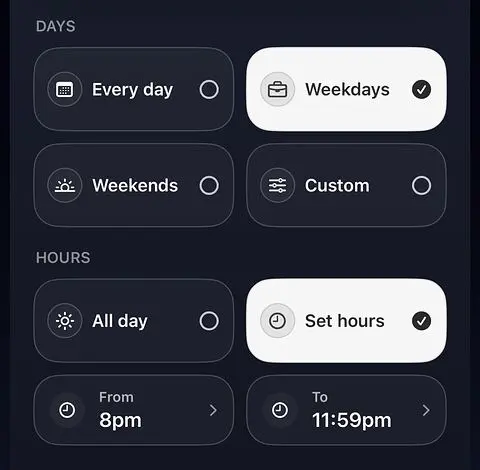
The idea is simple: make the decision while you’re thinking clearly, rather than every time the app calls your name later.
A few schedules that can work well:
- Morning: Keep social feeds harder to access for the first 30–60 minutes after waking up.
- Work: Restrict your most distracting apps during focused work blocks, then let them return at lunch or after work.
- Reading: Schedule a 30- or 60-minute window where feeds stay out of the way while you read.
- Bedtime: Make social apps harder to access during the last hour before sleep, especially if “one quick check” regularly becomes much longer.
None of these has to become an all-day ban. In fact, giving yourself clear times when social media is available can make the boundary feel much more reasonable.
Give yourself some time if you want it
Blocking social media at certain times doesn’t necessarily mean zero access.
Maybe you want fifteen minutes of Instagram during your evening window. Maybe you want Reddit available for twenty minutes at lunch. Maybe you’re fine with checking social media briefly during work, but you don’t want to keep reopening it every few minutes.
LightScroll lets you add a time allowance to a Control, so the rule can be more like “this is available, but not endlessly” instead of simply yes or no.
For some people, that softer boundary is enough. For others, allowing no time during a specific focus window works better.
There isn’t one perfect setup. Start with the least restrictive version that actually helps.
Add friction if you keep ignoring the schedule
Sometimes knowing that you planned to stay off Instagram until noon is enough.
Sometimes your thumb has other plans.
That’s where friction comes in. Instead of immediately opening the app, you can add a pause, a breathing exercise, a quick mini-game, a waiting period, or another small step before continuing. The goal isn’t to punish you. It’s to interrupt the automatic open long enough for you to remember why you set the schedule in the first place.
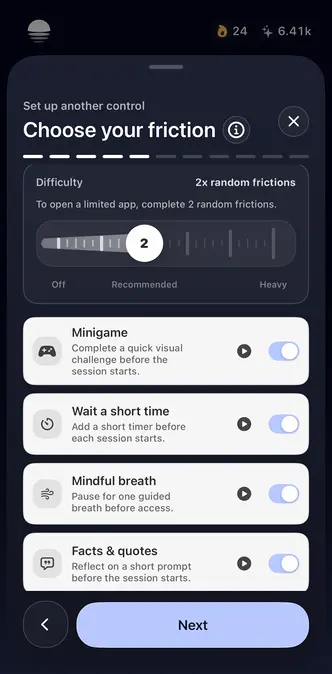
If lighter friction still isn’t enough, LightScroll can make the boundary stronger. Hardcore Mode can make a Control harder to change once you’ve committed to it, and accountability options can require a trusted partner’s unlock code after you’ve used up your available time.
Sometimes you need a gentle reminder. Sometimes you know yourself well enough to need a stronger fence.
Both are fine.
Be careful not to overdo it
It’s tempting to get enthusiastic on day one and block every social app from sunrise until bedtime.
That usually isn’t necessary.
If social media is part of how you talk to friends, follow communities, work, discover music, or simply relax, there’s nothing inherently wrong with using it. The goal is not to make your phone as restricted as possible. It’s to stop certain apps from taking over times you wanted to use differently.
Start with one part of your day.
Protect your mornings for a week. Or your first two work hours. Or the thirty minutes you wanted to spend reading before bed.
If it helps, keep it. If it feels unnecessarily strict, loosen it.
Make social media fit around your day
The nice thing about scheduling is that it changes the question.
Instead of asking yourself Should I open Instagram right now? fifty times a day, you make that decision once.
During the times you actually want social media, enjoy it. During the times you’d rather be working, reading, sleeping, talking to someone, or doing almost anything else, give those things a little protection.
Social media doesn’t need unlimited access to every spare moment just because it happens to live in your pocket.
If you want to try it, LightScroll lets you create scheduled Controls for the apps and websites that tend to interrupt the parts of your day you’d rather keep for yourself.