
How to Turn Off YouTube Autoplay on iPhone, Mac & TV
Derek C.
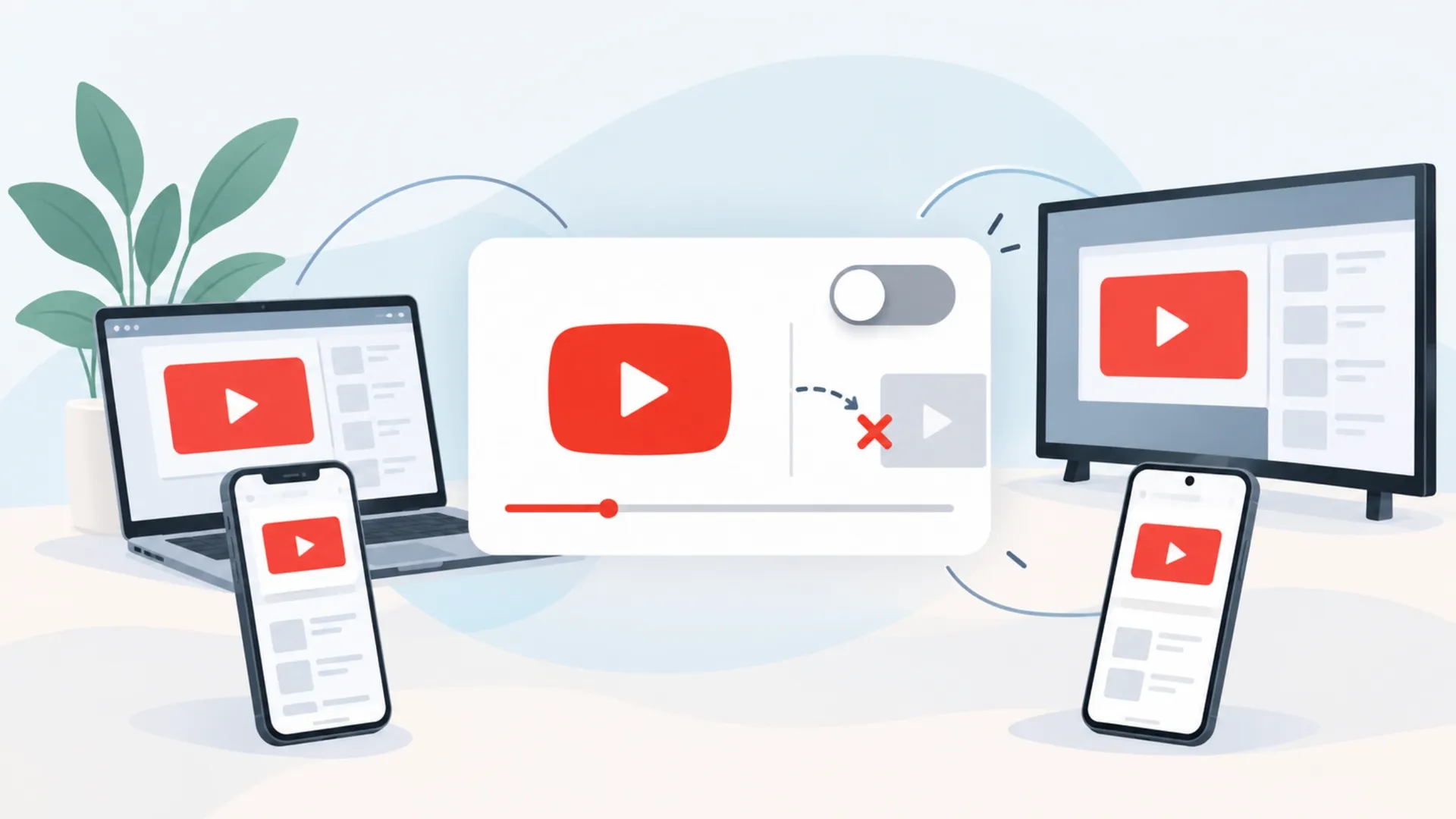
Turn off YouTube autoplay on iPhone, Android, Mac and TV. Stop next videos and feed previews, with fixes when playback keeps going.
To turn off YouTube autoplay, open a video and turn off the Autoplay switch in the player. On iPhone and Android, YouTube documents the switch at the top of the video player; on computers, it appears at the bottom. This stops a recommended video from starting automatically after the video you chose finishes.
If videos play silently while you scroll YouTube's Home feed, turn off a different feature: Playback in feeds. These are separate controls, and you can disable both without deleting YouTube.
Quick answer: Which setting do you need?
Autoplay stops the next recommended video; Playback in feeds stops muted previews. Neither one is the same as the separate Shorts feed limit.
If another suggested video starts after the one you chose finishes, turn Autoplay off.
If videos start playing silently while you browse Home or search results, turn Playback in feeds off.
If you get pulled into an endless Shorts feed, set the Shorts feed limit to 0 minutes in the mobile app.
If videos keep playing in a playlist or casting queue, check the playlist, repeat, or queue controls instead.
YouTube's official Autoplay help page confirms that devices can have different Autoplay settings. Check the device where unwanted playback actually happens.
How to turn off YouTube autoplay on iPhone
Play a regular YouTube video on your iPhone and switch Autoplay off near the top of the player. If you can't see the switch, tap the player to reveal its controls.
- Open the YouTube app.
- Play a video outside a playlist.
- Tap the player to show its controls.
- Find the Autoplay switch and set it to Off.
- Let the video finish to confirm a suggested next video doesn't start automatically.
You can also open the You tab or your profile picture, select the Settings gear, and look for Autoplay. YouTube's help page describes Settings → Autoplay for iOS. Some 2026 versions use Settings → Playback → Autoplay next video instead, as documented in AT&T's iPhone support instructions. Look for the next-video setting rather than assuming every version uses the same menu label.
Stop muted videos from playing while you scroll on iPhone
To stop YouTube videos playing automatically in your Home feed, choose Playback in feeds → Off. The next-video Autoplay setting does not control this separate inline-player feature.
- Open YouTube and tap your profile picture or You tab.
- Open Settings.
- Find General → Playback in feeds. Some newer versions place the option under Playback.
- Choose Off.
YouTube's official iPhone inline-player guide describes three choices: Always on, Wi-Fi only, and Off. Choose Off if you want videos to stay still until you select them. Wi-Fi only changes the connection type on which previews run; it doesn't disable previews completely.
How to turn off YouTube autoplay on Android
On Android, turn off Autoplay in the video player or in YouTube's settings. The control stops recommended next videos, not silent previews in the Home feed.
- Open YouTube and play a normal video.
- Tap the player to show its controls.
- Switch Autoplay to Off near the top of the player.
- Alternatively, open your profile picture → Settings → Autoplay and turn it off; some app versions group playback settings differently.
To stop feed previews too, open Settings → General → Playback in feeds → Off. YouTube's Android inline-player documentation confirms this is an independent setting. If General doesn't contain the option, check Playback in your current app version.
How to turn off YouTube autoplay on Mac or Windows
On a Mac or Windows computer, turn off Autoplay using the switch at the bottom of a regular YouTube video player. You don't need to change macOS System Settings or uninstall a browser.
- Open YouTube in Safari, Chrome, Firefox, or another supported browser.
- Play a regular video outside a playlist.
- Move your pointer over the player to show the controls.
- Click the Autoplay switch near the bottom to turn it Off.
- Test by allowing a short video to finish.
YouTube documents this desktop-player method in its official Autoplay guide. If the switch isn't where you expect, confirm you're watching a standalone video rather than a playlist or Mix, and inspect the controls in your current browser layout. A change made on your Mac doesn't necessarily carry over to your phone or TV.
How to turn off YouTube autoplay on a TV
On a smart TV or game console, open the YouTube app's Settings menu and set Autoplay to Off. TV apps have their own playback controls.
- Open the YouTube app on your TV or console.
- Navigate to Settings.
- Find Autoplay.
- Select Off.
This is YouTube's documented TV method. Menus vary by manufacturer and app version, but the feature name is consistent.
Stop autoplay when casting to your TV
When casting YouTube from your phone to a TV, turn off Autoplay in the casting queue on your phone. The queue can have controls separate from the normal phone player.
Connect your phone to the TV, select a video, tap the control bar at the bottom of your phone to expand the queue, and use the queue's Autoplay switch. YouTube includes this method in its official instructions.
Does turning off Autoplay also turn off YouTube Shorts?
No. YouTube Shorts uses a separate feed, so the normal Autoplay switch won't disable it. YouTube introduced a zero-minute Shorts feed limit for its mobile app in 2026.
On supported iPhone and Android versions, look under You → Settings → Time management → Shorts feed limit → 0 minutes. This can interrupt the endlessly scrolling Shorts feed while leaving regular YouTube videos available. It isn't an absolute lock on ordinary adult accounts: the reminder can be dismissed, and individual Shorts may still be accessible.
Our separate guide to turning off YouTube Shorts without blocking YouTube explains that feature in detail. It targets a different problem from ordinary next-video Autoplay.
Why does YouTube keep playing videos when Autoplay is off?
If videos still play automatically, check whether you're watching a playlist, seeing muted feed previews, casting to a TV, or using a different device. Those cases aren't all governed by one switch.
You're watching a playlist or YouTube Mix
A playlist may continue through its chosen sequence even when ordinary recommended-video Autoplay is off. Check whether the video came from Watch Later, a Mix, or another playlist. Look at the playlist panel and its Loop control; YouTube documents playlist repetition separately in its looping help page.
To test the general Autoplay setting fairly, start a normal standalone video from search results rather than a playlist.
You're seeing Playback in feeds, not next-video Autoplay
Silent previews on Home and search are controlled by Playback in feeds. Set that feature to Off as described above. Disabling Autoplay after a video ends won't stop a preview while you're scrolling.
You changed the setting on another device
YouTube supports different Autoplay settings on different devices. Check your phone, browser, smart TV, and casting queue individually. If you use multiple browser profiles or YouTube accounts, verify the setting where the behavior actually occurs.
The switch is missing or moved
Try a standalone video and check Settings for Autoplay or Playback if the player switch is missing. YouTube has changed menu layouts, and newer versions may place Autoplay next video under Playback. Updating the app can help if your interface differs from current guidance. YouTube also notes that some supervised accounts may not allow users to change Autoplay when a parent has disabled it.
You expected the current video to pause
Turning Autoplay off stops the next recommended video; it doesn't pause the one you're watching. Use the Pause button for the current video. If a next-video countdown appears while Autoplay is on, YouTube says you can tap Cancel to stop that particular transition.
Will turning off Autoplay reduce screen time?
Turning off Autoplay can stop one planned video from automatically becoming several, but it won't prevent you from choosing another video. It removes one automatic transition rather than blocking YouTube.
For a more deliberate setup, turn off both Autoplay next video and Playback in feeds. If Shorts are a problem, use their separate limit. This follows the principle in our article about reducing screen time without deleting apps: keep the technology you value, while changing the parts that pull you away from what you meant to do.
If the issue becomes opening YouTube out of habit rather than videos playing automatically, our guide to digital friction explains how a small pause can interrupt an automatic action.
Where LightScroll fits
LightScroll can help you set boundaries around opening the YouTube app or website, but it does not change YouTube's internal Autoplay setting. YouTube's own controls are the first place to start for autoplaying videos.
LightScroll is available for iPhone and Mac. Its Controls can apply schedules and time allowances to selected apps or websites, while Frictions introduce a deliberate pause before opening something distracting. You could use a YouTube Control during working hours and leave the evening free for videos you choose intentionally. That is an app- or website-level boundary, not a way to selectively disable next-video Autoplay inside YouTube.
If the issue is staying up later than you intended, our article on breaking the phone-before-bed habit explores how to create a more realistic evening routine.
Frequently asked questions
How do I turn off YouTube autoplay on iPhone?
Play a video and turn off the Autoplay switch near the top of the player. You can also check YouTube Settings → Autoplay, or Settings → Playback → Autoplay next video on app versions with the newer menu.
How do I stop YouTube videos from playing while scrolling?
Set Playback in feeds to Off in the YouTube mobile app. Look under Settings → General → Playback in feeds, or under Playback in newer layouts.
Why does YouTube still play videos after I turned Autoplay off?
You may be watching a playlist, seeing inline previews, or using a different device or casting queue. Identify which type of playback is happening and change its corresponding setting.
Does disabling YouTube autoplay remove Shorts?
No. Shorts has a separate feed limit, including a zero-minute option on supported mobile app versions. Use that feature for Shorts, not the ordinary next-video Autoplay setting.
Does the Autoplay setting sync to every device?
No. YouTube says devices can have different Autoplay preferences. Check your phone, computer, TV, and casting queue separately.
Make the next video a choice
Turning off next-video Autoplay and Playback in feeds gives you two practical ways to make YouTube less automatic. You can still enjoy music, tutorials, lectures, and the creators you follow without YouTube deciding what plays next.
If your bigger challenge is opening distracting apps or websites without thinking, try LightScroll on iPhone or Mac to add a deliberate pause before access.
Sources: YouTube Help — Autoplay videos; YouTube Help — Use the inline player; YouTube Help — Loop videos or playlists. Settings can vary by app version and device.