
How to Silence Notifications on iPhone Without Missing Important Messages
Derek C.
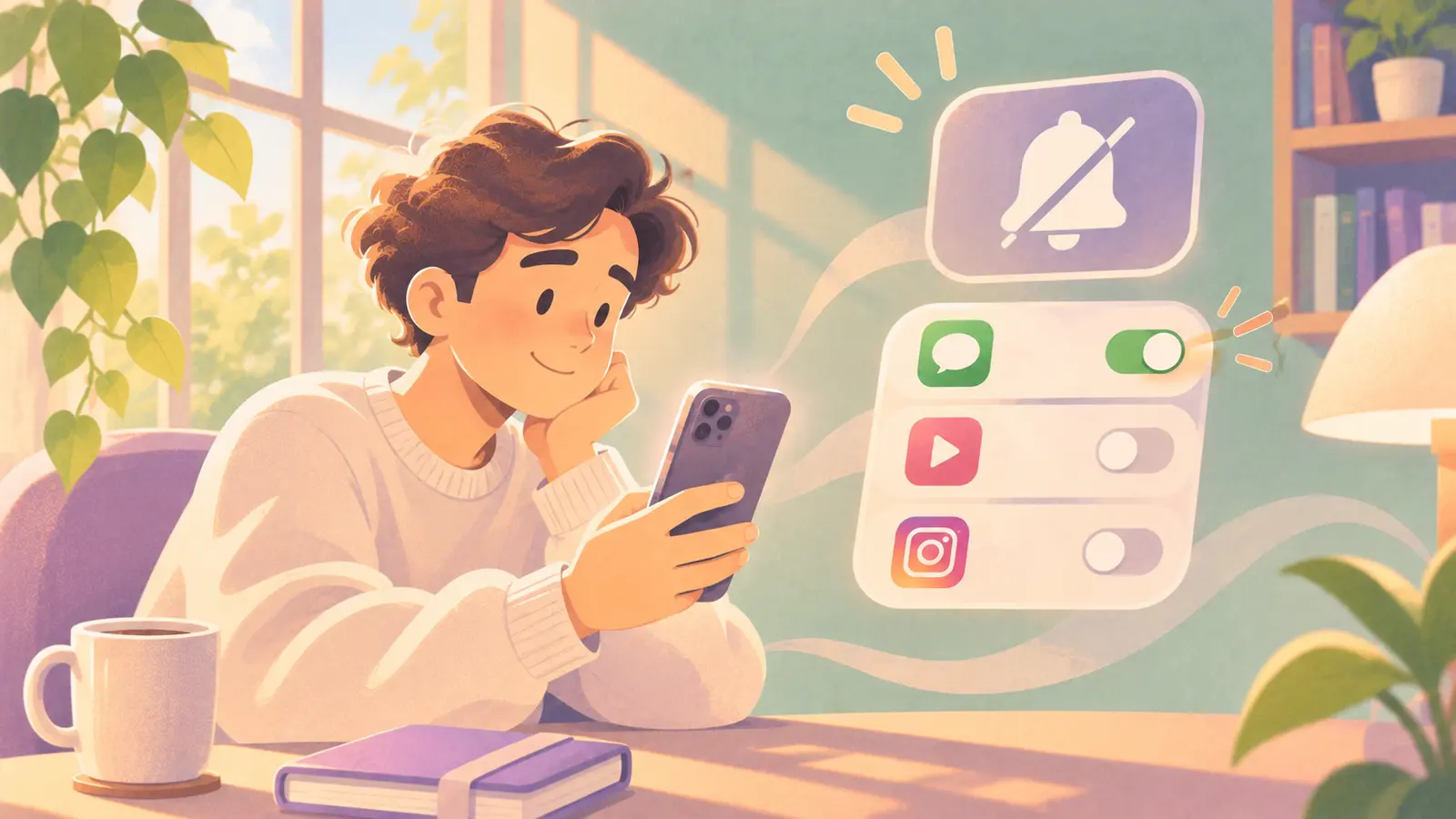
Silence iPhone notifications using Focus, per-app controls and Scheduled Summary. Keep calls and messages you need, without constant interruptions.
Your phone buzzes. It's a shopping app reminding you about a sale. You put the phone down, and a few minutes later a social app sends a notification about someone you barely know.
You don't necessarily want to turn your phone off. You might need a call from family, a message about work, or an alert from an app you actually rely on. You just want the unnecessary notifications to stop interrupting everything else.
The easiest way to silence notifications on iPhone is to use Do Not Disturb for a temporary break, turn off notifications for specific apps in Settings, or use Scheduled Summary to receive less urgent alerts later. Which one to choose depends on what you still want to receive.
Here's how to set up each option, including how to keep important calls and messages coming through.
Quick answer: Three ways to silence iPhone notifications
What you want
Best iPhone setting
Where to find it
Quiet for an hour or while working
Do Not Disturb / Focus
Control Center → Focus
Stop alerts from one app indefinitely
Per-app notification settings
Settings → Notifications → App
Collect less urgent alerts for later
Scheduled Summary
Settings → Notifications → Scheduled Summary
These controls solve different problems. Silent mode mutes sounds; it isn't the same thing as hiding notification banners, stopping an app from notifying you or choosing who can interrupt a Focus.
If you want fewer interruptions without missing important information, try the least disruptive option first.
1. Silence all but important notifications with Do Not Disturb
Do Not Disturb is the fastest choice when you need quiet right now.
- Open Control Center by swiping down from the upper-right corner on an iPhone with Face ID. On older models with a Home button, swipe up from the bottom.
- Tap Focus.
- Tap Do Not Disturb.
- When you're ready for normal notifications again, open Control Center → Focus and turn it off.
You can also choose a duration, such as an hour or until you leave a location, using the options alongside the Focus control. The exact display depends on your iOS version.
This is better than permanently turning off every app's notifications when you only need a short, uninterrupted window. Apple's guide to turning on or scheduling a Focus explains how to turn a Focus on temporarily or on a schedule.
But don't stop at the quick toggle. If you need to hear from specific people, set up exceptions first.
Allow calls and messages from important people
Do Not Disturb doesn't have to mean being unreachable.
- Open Settings → Focus → Do Not Disturb.
- Tap People (or Choose People, depending on iOS).
- Choose Allow Notifications From.
- Add the contacts who should be able to reach you.
- Review the call options, including allowed caller groups and repeated calls.
Apple also offers an Emergency Bypass setting on a contact's ringtone or text-tone settings. That can allow their calls or texts through even when your phone is silenced, so choose the people who truly warrant this exception.
For example, you could silence social updates while allowing calls from your partner, family, or someone coordinating an important appointment. Don't set this up so strictly that you risk missing calls you actually need.
Allow notifications from essential apps
Still under Settings → Focus → Do Not Disturb, tap Apps (or Choose Apps). You can choose apps to allow while Focus is active, rather than letting everything interrupt you.
You might allow your calendar, a messaging app used by family or work, or a service that regularly delivers time-sensitive information. Be selective: if every app gets an exception, Do Not Disturb won't feel very different from normal use.
Review Time Sensitive Notifications too. If enabled, supported apps can send certain notifications even while a Focus is active. This can be useful, but it's also worth checking if more alerts are coming through than you intended.
Apple documents these choices in its guide to allowing or silencing people and apps during a Focus.
2. Turn off notifications from a specific iPhone app
Sometimes you don't need Do Not Disturb at all.
If one app is the problem—maybe Instagram notifications, shopping promotions or constant game reminders—it's usually better to change that app's settings instead of muting your entire phone.
- Open Settings.
- Tap Notifications.
- Choose the app under the app notification list.
- Turn Allow Notifications off.
You can keep the app installed and open it whenever you like. You simply stop receiving its notifications.
The change is reversible: return to the same screen and enable Allow Notifications again. You don't need to delete the app, log out, or change its Screen Time limit.
This is particularly useful for apps where you want to decide when you check them, rather than have them decide when you look at your phone.
If you're curious why those little interruptions can be so disruptive, our article about why it's hard to stop scrolling looks at notifications and automatic checking habits. The important part here, though, is the setting: you can remove the prompt without removing the app.
Keep the notification, but stop the banner or sound
Turning off Allow Notifications is the strongest per-app choice, but it's not the only one.
On the same app's notification screen, you can usually control where an alert appears:
- Lock Screen: whether it appears when your phone is locked.
- Notification Center: whether you can find it when you intentionally check your alerts.
- Banners: whether it interrupts the screen you're currently using.
- Sounds and Badges: whether it makes a noise or adds a number to the app icon, when those options are supported.
For example, you could turn off banners and sounds for a social app while leaving its notifications visible in Notification Center. That lets you check updates when you decide, not immediately when the app requests your attention.
This is different from disabling notifications altogether. If you're concerned about missing something, it's a useful middle ground.
Apple's notification settings guide explains the per-app choices and notes that different apps may offer different options.
3. Schedule non-urgent notifications to arrive together
If turning off notifications feels too aggressive, Scheduled Summary offers another approach.
Instead of receiving every less-urgent alert at the moment it arrives, you can collect notifications from selected apps and view them at times you choose.
Here's how:
- Go to Settings → Notifications → Scheduled Summary.
- Turn on Scheduled Summary.
- Choose when you'd like summaries to arrive.
- Select the apps you want included.
For example, you might put shopping, entertainment and social updates into an afternoon and evening summary, while keeping essential messages on immediate delivery.
Scheduled Summary isn't a perfect quarantine for every notification. Some time-sensitive or specially prioritized alerts may still appear immediately, and the exact behavior depends on the app and your settings. Test the result before relying on it for important communication.
A useful rule: If you genuinely need to act on an alert quickly, don't make it part of your leisurely evening catch-up. Put non-urgent notifications there instead.
For someone who wants fewer phone interruptions but doesn't want to miss information, this can be a more comfortable starting point than blanket Do Not Disturb.
4. Silence notifications automatically during work or bedtime
Manually enabling Do Not Disturb every morning works—until you forget.
For a repeatable schedule, use Focus instead.
- Open Settings → Focus.
- Select Work, Personal, Do Not Disturb, or another Focus.
- Configure the people and apps you want to allow.
- Tap Add Schedule.
- Set the days, times, location, or app trigger you want to use.
Imagine that your main problem is being interrupted between 9 and 11 AM. A Work Focus can silence the apps that don't belong in that period while letting essential calls or calendar updates through.
For nighttime, iPhone also offers a Sleep Focus tied to the sleep schedule you configure in Health. That can be more natural than remembering to silence the phone after you've already gotten into bed.
If late-night alerts are part of a broader scrolling problem, our guide on breaking the phone-before-bed habit covers what to do after the notifications have stopped. Focus controls the interruptions; the habit still depends on how you choose to use the screen.
Why is my Mac going quiet too?
If you use multiple Apple devices, a Focus can be shared across devices signed in to the same Apple Account.
Open Settings → Focus and review Share Across Devices. Turning it on makes Focus behavior follow you between supported Apple devices; turning it off can make a particular device behave more independently.
This is useful if you want work notifications on your Mac while keeping the iPhone quiet, or if you want the same quiet hours everywhere.
Do notifications still come through when Do Not Disturb is on?
Sometimes. It doesn't necessarily mean your iPhone is ignoring the setting.
If you're still seeing or hearing alerts, check these possibilities in order.
A person or app is on your allowed list
Open Settings → Focus → [your active Focus] and review People and Apps. An allowed contact or app can still interrupt you by design.
Repeated calls or an emergency exception is enabled
Apple can allow repeated calls or an Emergency Bypass exception for a contact. Review those settings if a particular caller continues to ring through.
Time Sensitive Notifications are enabled
Some apps can send time-sensitive alerts through a Focus when you permit that. Review the setting under the Focus's app rules and within the individual app's notification settings, where available.
The Focus you configured isn't actually active
Open Control Center and check the Focus name or icon. A schedule might not have started yet, or a different Focus could have replaced the one you expected.
You're using Silent mode, not a Focus
Silent mode is primarily about sound. An app may still display alerts on the Lock Screen or as banners.
If you want your screen to stop lighting up with nonessential alerts, use the app's banner and Lock Screen choices or a Focus, not just the Ring/Silent control.
How to stop the “Notifications Silenced” message people see
Sometimes the phone is finally quiet, but friends or coworkers ask why iMessage says your notifications are silenced.
That's related to Focus Status, not a sign that your messages are being deleted.
To review it:
- Open Settings → Focus → Focus Status.
- Check Share Focus Status.
- Turn it off if you don't want your Focus status shared, or choose which Focus modes may share it.
Someone seeing “notifications silenced” isn't a guarantee that a particular message won't reach you. It is a status indicator associated with your settings. You can still check Messages normally.
Notifications off, but you're still opening the app?
Here's the important distinction: silencing a notification doesn't block an app.
If you open Instagram out of habit even when it hasn't sent an alert, switching off Instagram's notifications may not change that part of your behavior.
You can still keep the app installed and manage how it fits into your day. Our guide to reducing screen time without deleting apps explains that broader approach.
And if the challenge is the automatic opening itself, consider adding a boundary at that moment.
LightScroll is an app for iPhone and Mac that lets you put Controls around distracting apps and websites, choose schedules and time allowances, and add a little Friction before opening them. It works on a different layer from Apple's notification settings.
LightScroll doesn't replace iOS Notification settings or promise to silence every alert. The combination can be useful: iPhone controls when notifications interrupt you, while LightScroll can help you be more intentional about when distracting apps are opened.
For a deeper explanation of that distinction, see why adding a little digital friction to your phone can help.
Frequently asked questions
How do I silence notifications on iPhone without turning off calls?
Set up a Focus under Settings → Focus, then use People and the call options to allow your chosen contacts or caller groups. Test the settings with someone you trust before relying on them.
How do I silence notifications from just one app?
Go to Settings → Notifications → [App] and disable Allow Notifications. If you want the alerts to remain accessible, try disabling banners or sounds instead of switching all notifications off.
Can I silence iPhone notifications for one hour?
Yes. Open Control Center, tap Focus, select Do Not Disturb and choose an available temporary duration. Exact controls vary by iOS version.
How do I turn off notification sounds but still see notifications?
For an individual app, open its settings under Settings → Notifications and turn off Sounds where supported, while keeping the alert locations you prefer. Silent mode can also mute sounds more broadly, but it won't necessarily hide alerts.
Is Scheduled Summary the same as Do Not Disturb?
No. Scheduled Summary gathers selected, generally non-urgent notifications for later. Do Not Disturb is a Focus that silences or filters interruptions while active, with exceptions you configure.
Will silencing notifications stop me from doomscrolling?
It can remove some prompts that bring you back to an app, but it won't necessarily stop you opening that app on your own. If that's the bigger problem, a schedule, access limit or deliberate pause may help.
Keep the messages that matter. Lose the interruptions you don't need.
You don't have to choose between being reachable and being interrupted all day.
If one app is noisy, start by turning off its notifications. If you need quiet for work, configure a Focus with sensible exceptions. If you want to catch up later, try Scheduled Summary.
And if you've quieted your iPhone but keep opening distracting apps without meaning to, try LightScroll on iOS or macOS to put a deliberate pause before access.
The goal isn't a phone that never asks for your attention. It's a phone that does so when you actually want it to.
Sources: Apple — Change notification settings; Apple — Focus notification exceptions; Apple — Turn on or schedule a Focus. Menu labels and availability depend on iOS version.