
How to Make Your iPhone Grayscale (Black and White) and Switch Back
Juan F.
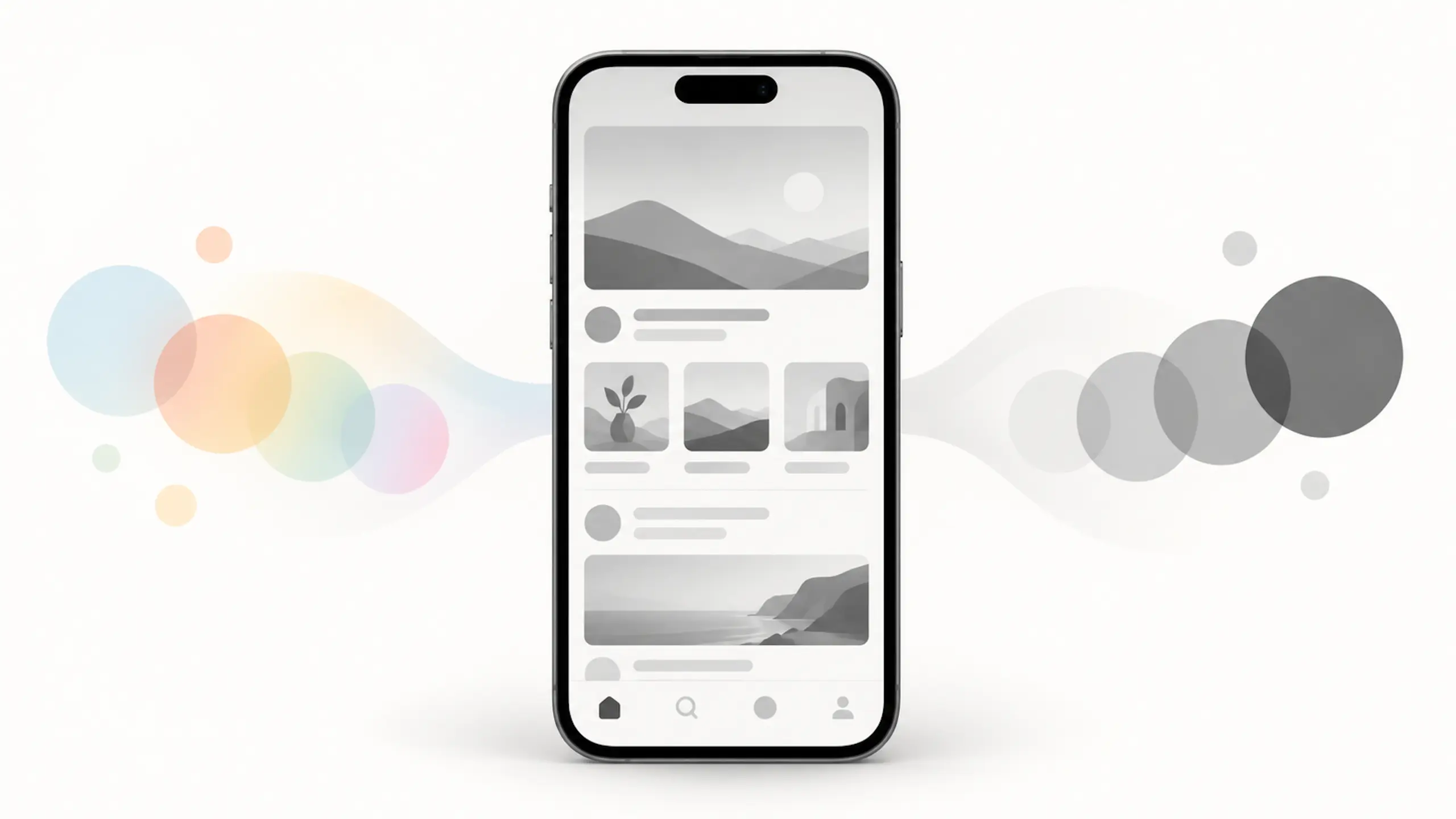
Make your iPhone grayscale using Apple's Color Filters, add a one-tap shortcut, automate black-and-white mode, and learn whether it reduces screen time.
To make your iPhone screen black and white, open Settings → Accessibility → Display & Text Size → Color Filters, turn on Color Filters, and select Grayscale. This works without downloading an app, deleting your favorite apps, or changing your photographs into black-and-white files.
You can leave grayscale on all day, assign it to a triple-click of the side button, or automatically switch it on during a Focus. Below are the exact settings, what the research says about reducing screen time, and how to restore color when you need it.
How to turn on grayscale on iPhone
Use Apple's built-in Grayscale filter under Accessibility; it changes the display across apps, not just your Home Screen.
- Open the iPhone Settings app.
- Tap Accessibility.
- Select Display & Text Size.
- Tap Color Filters.
- Turn Color Filters on.
- Select Grayscale.
Your display should immediately turn black and white. Apple documents that path in its iPhone User Guide.
If the screen looks reddish or has a blue, green, or yellow cast, you probably selected Color Tint or a color-vision filter instead of Grayscale. Return to Color Filters and choose Grayscale specifically.
You can use the same built-in feature on earlier compatible iOS versions, although a few surrounding Settings labels may differ. If you're following screenshots from a different version, the feature name Color Filters is the most useful landmark.
How to turn grayscale off and get your iPhone's colors back
Return to Settings → Accessibility → Display & Text Size → Color Filters and switch Color Filters off. Your iPhone will return to its ordinary color display immediately.
If you use Color Filters for another accessibility reason, don't assume turning them off is the right long-term solution. Instead, select the filter that meets your needs. Grayscale is only one option in the same menu.
There's no need to reset your iPhone, erase photos, or reinstall Instagram, TikTok, YouTube, or any other app. Grayscale is a screen-display treatment rather than a permanent edit to the original images and videos you view.
How to toggle iPhone grayscale with a triple-click
Assign Color Filters to Apple's Accessibility Shortcut to toggle grayscale with three quick presses of the side button or Home button. This is the easiest way to return to color for checking photos, choosing an outfit, or looking at a color-coded chart.
- Make sure Grayscale is the selected filter using the steps above.
- Go to Settings → Accessibility → Accessibility Shortcut.
- Select Color Filters.
- Triple-click the side button on an iPhone with Face ID, or the Home button on a model that has one.
If Color Filters is the only selected Accessibility Shortcut, the triple-click turns it on or off directly. If you select several features, you'll see a choice menu first. Apple explains the behavior in Quickly turn accessibility features on or off.
This shortcut is useful because grayscale can make certain tasks less convenient. Restoring color briefly isn't cheating; it's using the feature as intended.
Can you toggle grayscale by tapping the back of your iPhone?
Yes—Back Tap can trigger an accessibility feature or shortcut on supported iPhones. It's an alternative if you prefer not to use the side-button triple-click.
Open Settings → Accessibility → Touch → Back Tap, choose Double Tap or Triple Tap, and assign the relevant accessibility feature or a shortcut that controls Color Filters where available on your device. Then test the gesture while holding the phone normally.
Apple's official Back Tap guide explains the options. Back Tap isn't equally convenient for everyone: it may trigger accidentally, or fail to register through a bulky case.
How to make your iPhone grayscale automatically during work or bedtime
Use a Focus-triggered personal automation in Apple's Shortcuts app if you want grayscale only during particular periods. You can make your phone monochrome when Work Focus starts and restore color when it ends.
First, choose Grayscale in the Color Filters menu. Then:
- Open the Shortcuts app and tap Automation.
- Create an automation using your existing Work, Sleep, or another Focus as the trigger.
- Choose When Turning On, and select Run Immediately where offered.
- Add the Set Color Filters action and configure it to turn the filters On.
- Save the automation.
- Create a second automation for When Turning Off the same Focus, this time using Set Color Filters → Off.
Apple confirms that Shortcuts supports Focus on/off triggers. The exact automation creation labels vary across versions of iOS, so look for the Focus trigger and the Set Color Filters action rather than matching an old screenshot tap for tap.
Use explicit On and Off actions, not a generic Toggle action. A Toggle can unexpectedly reverse your display if you change grayscale manually halfway through the day. An On action always requests On.
One limitation: the automation doesn't preserve and later restore a different accessibility color filter you were previously using. If you depend on a particular filter for vision needs, avoid an automated Off action that would disable it.
This technique is different from simply setting a nighttime reminder to spend less time on your phone. A scheduled visual change happens without requiring you to remember it at the moment you're most likely to scroll.
Does making your iPhone grayscale actually reduce screen time?
Grayscale can reduce measured smartphone use for some people, but it isn't a guaranteed cure for compulsive checking. The best evidence suggests it makes certain visually engaging experiences less appealing; individual results and effects on well-being vary.
For example, a 2026 crossover feasibility study in Frontiers in Digital Health followed 51 medical students who used color and grayscale screen settings in alternating one-week periods. Researchers reported an average of 28 fewer minutes of daily screen time during grayscale use. The study was small and limited to one student population, so that figure isn't a promise of what your usage will drop by. Read the study.
A separate registered field experiment with 112 participants, published in Cyberpsychology, Behavior, and Social Networking, compared grayscale (a digital-friction approach), self-imposed time-limit goals, and self-monitoring. Grayscale produced an immediate, statistically significant reduction in objectively measured screen time compared with the control group, while goal-setting effects were smaller and more gradual. The researchers did not find an immediate causal improvement in subjective well-being or academic performance. Read the abstract on PubMed.
A 2024 study in Mobile Media & Communication also reported about 20 fewer minutes per day during a grayscale intervention, while daily phone unlocks did not significantly change. That's an important distinction: looking at your phone just as often but spending less time on it is different from stopping the checking habit altogether. Read the published study.
These are promising findings, not universal prescriptions. Grayscale can also make some everyday tasks inconvenient—especially activities where color carries meaningful information. If it creates accessibility or usability problems, switching it off is reasonable.
Why grayscale may make social apps less tempting
Removing color can make the visual rewards of feeds less vivid, adding a small amount of friction before you keep scrolling. It changes how content looks, not how Instagram's recommendations or YouTube's autoplay work.
Consider the usual interface of three familiar apps:
- Instagram: Photos, colorful Stories and Reels previews become monochrome, but the feed and recommendations still function.
- TikTok: Videos lose their color, but the For You feed remains available.
- YouTube: Thumbnails appear in grayscale, but recommendations, Shorts and ordinary videos still work.
That's why grayscale is a light-touch intervention. It doesn't block apps, prevent notifications, set daily allowances, or make an addictive feed impossible to open. It simply changes the visual environment you're using.
For a closer look at how tiny interruptions to automatic actions can help, see our explainer on digital friction and phone habits.
Should you use grayscale all day or only during certain hours?
Start with grayscale during your most distracting window rather than committing to a permanent black-and-white display. If late-night scrolling is the issue, try it during the evening. If you disappear into Instagram between meetings, try it during work hours.
Here are three setups worth testing:
Evening-only: Link grayscale to a Sleep or evening Focus. Restore color in the morning so photo editing, maps, and color-coded work remain easy.
Work-only: Have Work Focus activate grayscale during concentration blocks. Keep the phone useful for calls and tools you genuinely need.
All-day trial: Leave grayscale on for a few days and compare your iPhone's actual Screen Time reports before and after. Pay attention to usage by app, not just the total minutes.
Avoid treating a particular drop as proof of causation from a one-person before-and-after test. Workload, travel, weekends, and changes in app habits can all move the numbers.
If you want a wider set of changes beyond display colors, our guide to making an iPhone more like a dumb phone covers the larger minimalist setup. This article stays focused on grayscale itself: turning it on, automating it, and interpreting its effects.
Why is my iPhone black and white unexpectedly?
Check whether Color Filters or an accessibility shortcut was switched on before assuming the screen is broken. An accidental triple-click or an automation can change your display without you noticing which setting caused it.
Work through these checks:
- Settings → Accessibility → Display & Text Size → Color Filters: Is the toggle on, with Grayscale selected?
- Settings → Accessibility → Accessibility Shortcut: Is Color Filters assigned to the side- or Home-button triple-click?
- Shortcuts → Automation: Did you create a Focus, app, or time-of-day rule that turns Color Filters on?
- Settings → Accessibility → Touch → Back Tap: Is a back-tap gesture triggering an accessibility feature?
Disable or revise the mechanism you no longer want, then test the phone again.
If the display still has a problem even after you've disabled all relevant filters, that may be a different issue and worth troubleshooting separately with Apple Support. Don't assume grayscale is the cause of unrelated display faults.
What's the difference between grayscale, Dark Mode, Night Shift, and Reduce White Point?
Grayscale removes color, Dark Mode changes interface appearance, Night Shift warms the display, and Reduce White Point reduces the intensity of bright colors. None of them is a substitute for the others.
- Grayscale: Settings → Accessibility → Display & Text Size → Color Filters. Changes the whole screen to shades of gray.
- Dark Mode: Settings → Display & Brightness. Uses darker interface appearances where supported, but photos and videos remain in color.
- Night Shift: Settings → Display & Brightness → Night Shift. Shifts display colors toward the warmer end of the spectrum.
- Reduce White Point: Settings → Accessibility → Display & Text Size. Tones down bright colors without turning the display monochrome.
Apple notes that Night Shift removes several inverted-color and color-filter effects but does not remove grayscale. Apple's display-colors documentation explains each option.
Choose the feature for your actual goal. If you're looking for less visually stimulating social media, grayscale is the relevant experiment. If bright light bothers you at night, screen brightness and display settings may be more appropriate.
What if grayscale isn't enough to stop opening distracting apps?
Keep grayscale if it helps, then address the app-opening habit separately with schedules, limits, or deliberate pauses. Changing colors doesn't remove the Instagram app or prevent you from opening Reddit without thinking.
One practical combination is to use grayscale during work and a scheduled app limit for the two apps that pull you away most often. Another is to add a brief step before a distracting app opens, so there is time to ask whether you intended to use it.
LightScroll is an iOS and macOS app that lets you create Controls for selected apps and sites, choose schedules and time allowances, and introduce Frictions before access. On supported platforms, stronger options such as Hardcore Mode and accountability features can make a boundary harder to casually change.
LightScroll does not replace Apple's Color Filters or turn individual social apps grayscale. Apple's Accessibility setting handles that part; LightScroll addresses access to distracting apps and websites more broadly. The two approaches can complement each other.
If you want to keep your favorite apps instead of deleting them, see our guide to reducing screen time without deleting every app. For the underlying habits and feed design, read why it can be so hard to stop scrolling.
Frequently asked questions
How do I make my iPhone screen black and white?
Go to Settings → Accessibility → Display & Text Size → Color Filters, turn Color Filters on, and choose Grayscale. You can reverse the change in the same menu.
How do I get color back on my iPhone?
Turn Color Filters off in Settings → Accessibility → Display & Text Size → Color Filters, or use your triple-click shortcut if you assigned one.
Is there a grayscale shortcut on iPhone?
Yes. Go to Settings → Accessibility → Accessibility Shortcut, select Color Filters, and triple-click the side button or Home button to toggle it. With multiple accessibility shortcuts selected, a menu appears first.
Can I automatically enable grayscale at night?
Yes, using a personal automation in Shortcuts. Choose a Sleep Focus or time-based trigger, then set the Set Color Filters action to On. Create a second automation that turns it Off when that period ends.
Does grayscale disable Instagram, TikTok, or YouTube?
No. Grayscale changes the appearance of the entire screen, but the apps, feeds, notifications and videos still function.
Will grayscale save my iPhone battery?
Don't count on grayscale as a reliable battery-saving feature. It changes displayed colors; actual battery use depends on your device's display technology, brightness and usage. Use Low Power Mode and other supported battery controls if endurance is the priority.
Make your phone a little less attention-grabbing, not less useful
Grayscale is a free, reversible way to test whether a less colorful screen helps you spend less time scrolling. Start with Settings → Accessibility → Display & Text Size → Color Filters → Grayscale, then add a triple-click or Focus automation so it fits your routine.
Give it a fair test, observe your real Screen Time data, and keep the settings that help. If monochrome makes everyday tasks worse, switch back. Progress isn't measured by how unpleasant you can make your phone.
For another small layer of intentionality, try LightScroll for iPhone and Mac and create a Control for whichever app or website most often steals your attention.