
How to Block Websites on Chrome
Derek C.
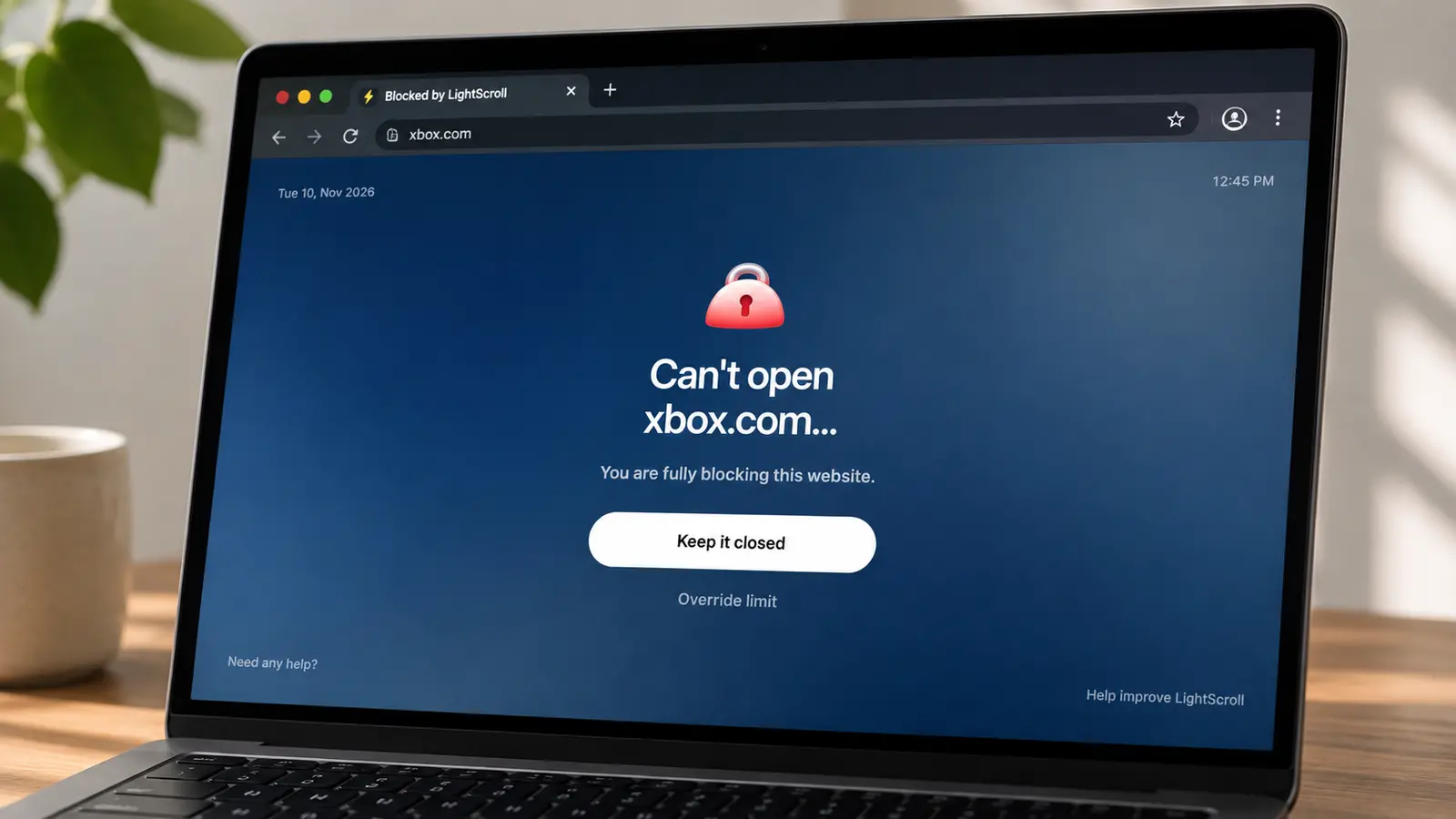
Learn how to block websites on Chrome using a browser extension, device controls or network settings - and understand which method works on desktop and mobile.
If you want to block websites on Google Chrome, the easiest method depends on your device and how strict you want the restrictions to be. You might want to stop opening Reddit during work, prevent access to distracting websites, or create healthier browsing habits without relying entirely on willpower.
Google Chrome doesn't offer a standard built-in website blocker for personal users, but several alternatives are available. You can install a browser extension, use your device's built-in controls, configure network-level restrictions, or use a dedicated app like LightScroll to manage distracting websites.
This guide explains how to block websites on Chrome across Mac, Windows, iPhone, Android, and Chromebook, including free options and stronger restrictions for staying focused.
1. Block Distracting Websites With LightScroll
If your goal is to reduce distractions rather than simply prevent access to a website, LightScroll offers a more intentional approach to website blocking on supported Apple devices.
Rather than relying on a Chrome extension, LightScroll lets you create personalized Controls for distracting websites and apps. You can choose which websites to restrict, when those restrictions apply, and how much access you want to allow.
For example, you might block Reddit and Instagram during working hours, restrict entertainment websites before bed, or give yourself a limited amount of time to browse distracting content each day. This allows you to keep useful websites accessible while establishing boundaries around the ones that regularly interrupt your attention.
LightScroll also includes Frictions, which introduce a pause or short activity before permitted access. Instead of automatically opening a distracting website, you have a moment to consider whether you actually want to continue.
For stronger commitment, LightScroll Plus offers Hardcore Mode, which makes selected Controls harder to edit or remove. You can also configure Overrides that require waiting or requesting a six-digit unlock code from an accountability partner, helping you stick to restrictions you've chosen.
LightScroll supports iPhone, iPad, and Mac, making it an option for people who want to manage distracting apps and websites across supported Apple devices rather than rely solely on browser-specific extensions.
You can get started with LightScroll for free.
2. Block Websites on Chrome With an Extension
For Windows, Mac, and Chromebook users who only need to block websites within Chrome, a browser extension is often the simplest option.
The Chrome Web Store offers website-blocking extensions that can restrict particular domains, create schedules, or limit access during focused work sessions.
To get started, open Chrome and visit the Chrome Web Store. Search for a website blocker, review its ratings and permissions, then select Add to Chrome. Once installed, open the extension's settings and enter the websites you want to restrict.
For example, you could add reddit.com, instagram.com, or youtube.com to a blocklist to prevent yourself from opening those websites while working.
Some extensions also allow you to schedule restrictions, making websites unavailable during particular hours rather than blocking them permanently.
The main limitation is that Chrome extensions generally only work within Chrome on the computer where they're installed. You may still be able to open blocked websites through another browser, and extensions can often be disabled or removed. If you're looking for stronger accountability, device-level restrictions may be a better choice.
Before installing a website blocker, review its privacy policy and requested permissions, especially if it can access browsing activity.
3. Block Websites on Chrome on iPhone or Android
Blocking websites on mobile works differently because Chrome doesn't support desktop browser extensions on iPhone and Android in the same way.
On iPhone or iPad
Apple's built-in Screen Time settings provide a free way to restrict specific websites, including when browsing through supported third-party browsers such as Chrome.
To block a website:
- Open Settings and select Screen Time.
- Enable Content & Privacy Restrictions.
- Open App Store, Media, Web, & Games, then Web Content.
- Choose Limit Adult Websites.
- Under Never Allow, select Add Website and enter the domain you want to block.
Despite the name, the Never Allow list isn't limited to adult websites. You can use it to restrict social media, entertainment, or other distracting domains.
Keep in mind that blocking a website doesn't necessarily block its corresponding app. If Instagram is restricted in your browser, for example, its native application may require a separate restriction.
Our guide to blocking websites on iPhone explains these options in more detail.
On Android
Chrome on Android doesn't support standard desktop website-blocking extensions. Instead, you can use compatible Android website blockers, device-level controls, or DNS filtering.
For children's supervised accounts, Google Family Link offers parental controls that can help manage website access in Chrome.
For personal use, choose a blocking service that supports your Android device and confirm whether its restrictions apply only to Chrome or across other browsers as well.
4. Block Websites Across Your Home Network
If you want to block websites on several devices connected to the same Wi-Fi network, you may be able to configure restrictions through your router.
Some routers include built-in Parental Controls, Website Filtering, or Access Restrictions that let you block specific domains. To check, sign in to your router's administration page, locate its filtering settings, and add the websites you want to restrict. Save your changes and test the restrictions on a device connected to your Wi-Fi.
The exact process depends on your router, and not every model supports custom website blocking.
Another option is DNS filtering. DNS services help devices locate websites, and filtering providers can prevent selected domains from resolving. For example, Cloudflare's 1.1.1.1 for Families offers free filtering for malware and adult content.
However, there's an important distinction: Cloudflare's Families service provides category-based protection, not a customizable list of individual websites you want to avoid. If you want to block specific websites such as Reddit or Instagram, you'll need a router or DNS provider that supports custom domain restrictions.
Network-level blocking also has limitations. Restrictions typically apply only while your device is connected to the configured network. Switching to mobile data, using another Wi-Fi network, or changing DNS settings may allow access. Chrome's Secure DNS settings or a VPN may also affect whether network filtering works.
For personal productivity, device-level blocking is often more convenient because it isn't tied to one Wi-Fi network.
5. Block Websites on Managed Chrome Browsers
Schools and workplaces can also restrict website access through Chrome Enterprise and Education policies.
Administrators can use Google's URLBlocklist and URLAllowlist policies to specify which websites users can access. These settings are intended for managed browsers and devices rather than ordinary personal Chrome installations.
If you're using a school or work computer, your administrator may already manage website restrictions.
You can read Google's documentation on blocking websites in Chrome for more information.
Why Is a Blocked Website Still Accessible?
If a website still opens after you've blocked it, the most common explanation is that the restriction doesn't cover the browser, app, or network you're currently using.
For example, a Chrome extension may successfully block a website in Chrome while leaving it accessible through Safari or Firefox. Similarly, a router-level restriction may stop working when your phone switches from Wi-Fi to cellular data.
Some websites also use multiple domains or subdomains, which may require additional rules depending on the blocker. VPNs and alternative DNS configurations can interfere with network-level filtering.
The best approach is to test your restrictions in the browsers and devices you actually use. If a website remains accessible, check whether your blocking method is intended to cover that particular browser, app, or connection.
Which Website-Blocking Method Is Best?
For simple website restrictions on desktop Chrome, a browser extension is usually the easiest starting point. It's convenient and often free, although restrictions typically remain limited to that browser.
If you're using an iPhone or iPad, Apple's Screen Time settings provide a built-in option. Android users can explore compatible website blockers or supervised-account controls, while households may benefit from router-level restrictions.
If your main goal is staying focused and reducing distracting browsing habits on Apple devices, LightScroll offers a more flexible alternative. Instead of maintaining a permanent list of blocked websites, you can create schedules, daily allowances, Frictions, and stronger commitments around the websites and apps that take more attention than you'd like.
Our guide to staying focused at work offers additional ways to structure your day and reduce digital distractions.
The Bottom Line
Google Chrome doesn't include a standard built-in website blocker for personal users, but there are several effective ways to restrict distracting websites.
Browser extensions are convenient for desktop Chrome, while device-level controls and network filtering provide alternatives for mobile devices and households.
For people who want to build more intentional browsing habits, LightScroll helps manage distracting websites and apps with personalized restrictions, schedules, and accountability features.
You don't necessarily need to block every distracting website permanently. Sometimes the better solution is deciding when you want access, how much time you're willing to spend, and making those boundaries easier to follow.
Frequently Asked Questions
Can I block websites on Chrome for free?
Yes. Free Chrome extensions, Apple's Screen Time restrictions, and certain router or DNS filtering features can block websites without a paid subscription. Available functionality depends on your device and chosen method.
How do I block websites on Chrome without an extension?
You can use device-level restrictions, router-based website filtering, or a compatible DNS service. On supported Apple devices, LightScroll offers another way to manage selected websites and apps without relying on a Chrome extension.
Can I block websites on Chrome at certain times?
Yes. Some Chrome extensions and dedicated blocking apps support scheduled restrictions. LightScroll allows you to create recurring Controls that restrict selected websites and apps during particular times of day.
Can I make website restrictions harder to bypass?
Some blocking services include stronger commitment or parental-control features. LightScroll Plus offers Hardcore Mode, which makes selected Controls harder to edit or delete, along with configurable Overrides that can require waiting or approval from an accountability partner.