
How to Block Porn on Mac and iPhone (iOS)
Derek C.
Learn how to block adult websites on Mac and iPhone with customizable limits and accountability features.
If you're looking to block pornographic websites on your Mac or iPhone, there are several ways to do it. Whether you're trying to reduce distractions, change a habit, or simply be more intentional about what you access online, setting up website restrictions can be a helpful first step.
The challenge is that blocking a website is often easier than sticking to the restriction. When you're the person who created the rule, it's tempting to simply turn it off when you change your mind.
That's where adding a little accountability can make a difference.
1. Create a Website Control with LightScroll
LightScroll is a screen time app for iPhone and Mac that lets you set personalized restrictions around distracting apps and websites.
To get started, download LightScroll and create a new Control. Add the adult websites you typically visit and choose how you'd like to restrict them.
You can configure a schedule, set a daily time allowance, or select Allow no time with LightScroll Plus to restrict access entirely during your chosen hours.
On iPhone, LightScroll uses Apple's Screen Time features, while on Mac, website Controls work with supported browsers.
2. Turn On Hardcore Mode for Stronger Protection
Setting a restriction is a good start, but what happens when you feel tempted to disable it?
LightScroll Plus includes Hardcore Mode, which makes it harder to bypass the boundaries you've created.
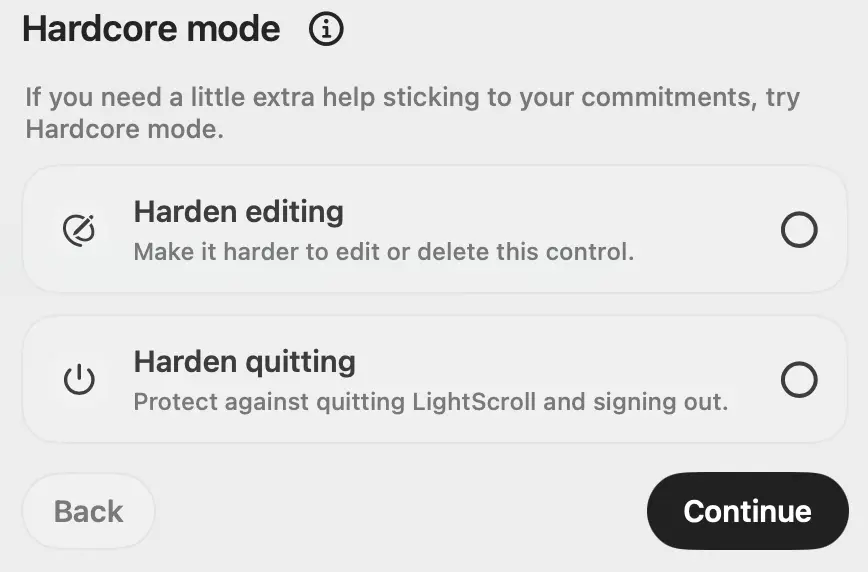
When enabled, Hardcore Mode can require your chosen Override method before you edit or delete a Control, quit LightScroll, or sign out.
This adds an extra layer of protection against changing your own settings impulsively. Keep in mind that operating-system-level permissions and uninstall options can still affect protection, so no ordinary app can guarantee an impossible-to-bypass block.
3. Add an Accountability Partner
For additional accountability, LightScroll lets you ask someone you trust to become your Accountability Partner.
You can configure your Override method to require their six-digit unlock code. That way, changing or removing a protected Control requires involving your partner rather than simply disabling the restriction yourself.
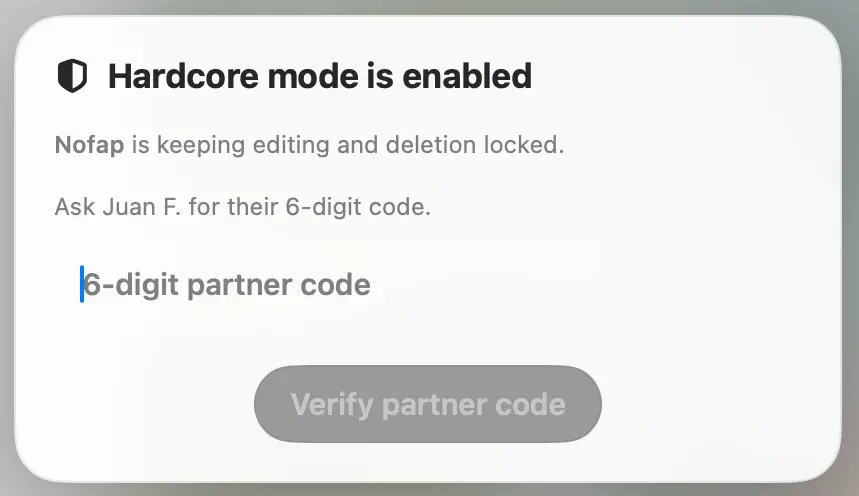
Your partner doesn't need access to your browsing history or a list of the websites you've chosen to restrict. They simply help you follow through on the boundaries you've set.
This can be especially useful if you've tried blocking websites before but found it too easy to undo your own restrictions.
Building Healthier Digital Habits
There's no single approach that works for everyone. Some people benefit from simple website limits, while others prefer stricter restrictions and the support of someone they trust.
It's also worth remembering that blocking individual websites isn't the same as filtering all adult content across the internet. LightScroll's Controls focus on the apps and websites you select, so broader content filtering may require additional device settings.
Ultimately, the goal isn't to make technology the enemy. It's to create an environment that supports the choices you want to make.
That's why we built LightScroll: to make room for life beyond the screen.
If you'd like to create healthier browsing habits with customizable website restrictions, Hardcore Mode, and optional accountability, try LightScroll for free on iPhone or Mac.