
How to Block Websites on Safari
Juan F.
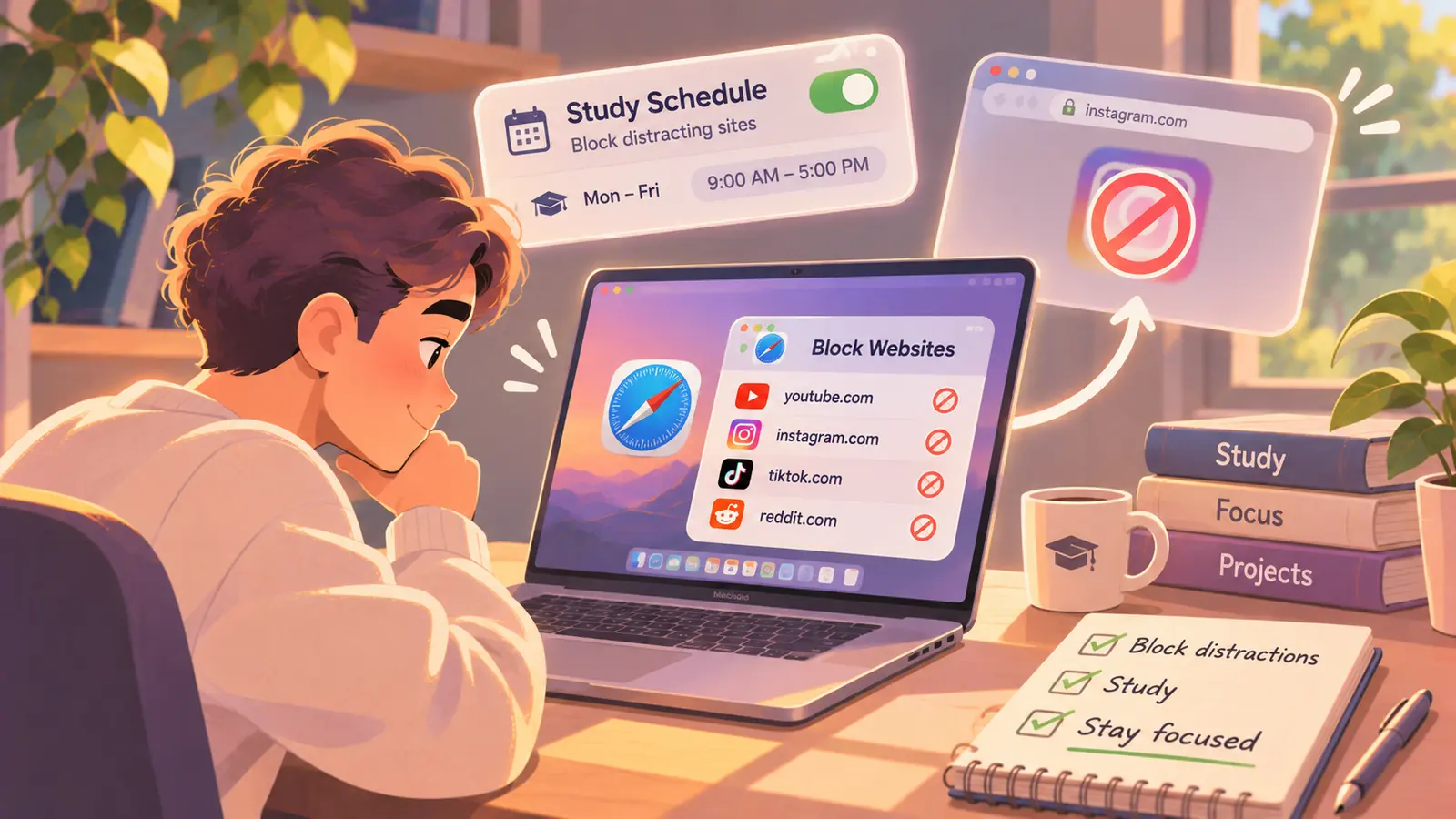
Want to block distracting websites in Safari? Learn how to use Apple's Screen Time restrictions, browser extensions and dedicated blockers on Mac, iPhone and iPad.
Ever opened Safari to check one thing, only to find yourself scrolling through Reddit, watching YouTube, or browsing something completely unrelated twenty minutes later?
We've all been there. Sometimes the hardest part of staying focused isn't getting started. It's resisting the temptation to open the same distracting websites throughout the day.
The good news? You can block websites on Safari using Apple's built-in Screen Time settings or a dedicated website blocker like LightScroll.
If you're looking to block distracting websites during work, studying, or bedtime without giving them up forever, here's how to get started.
1. Block Websites on Safari With LightScroll
LightScroll helps you take control of distracting websites on iPhone, iPad, and Mac. Rather than simply preventing access, LightScroll lets you decide when, how often, and under what conditions you want to visit your favorite sites.
Maybe you want Reddit unavailable during work, YouTube limited to thirty minutes a day, or social media restricted before bed. LightScroll lets you create personalized rules around your routine rather than relying on willpower alone.
How to Set Up Website Blocking With LightScroll
- Download LightScroll on your supported Apple device.
- Create a new Control and select the websites you want to manage.
- Choose your schedule and daily time allowance, such as restricting Reddit from 9 AM to 5 PM on weekdays.
- Configure your Frictions and Override preferences, then save your Control.
That's it! Your new boundaries are ready.
For a closer look at setting up Controls, Frictions, and other features, explore our LightScroll How It Works guide.
More Than Just Website Blocking
What makes LightScroll different is how it helps you follow through on the limits you've chosen.
Frictions introduce a deliberate pause before accessing a distracting website. Instead of automatically opening YouTube whenever you're bored, you get a moment to reconsider whether that's actually how you want to spend your time.
You can also create Focus Sessions with timed goals you can repeat anytime. Whether you want to study for 30 minutes, concentrate on a project for an hour, or enjoy a distraction-free reading session, you can start a Focus Session whenever you're ready and repeat it as often as you like.
And if you know you'll be tempted to change your own limits, LightScroll Plus offers Hardcore Mode, which protects Controls against impulsive changes, along with accountability partner codes and the option to disable Overrides.
LightScroll also makes progress more rewarding through XP, streaks, and challenges with friends. It's about building better digital habits, not just blocking websites.
You can try LightScroll for free with its Basic plan and standard Frictions. Plus unlocks unlimited Controls, complete blocking with zero allowed time, and stronger customization.
2. Block Websites on Safari Using Screen Time on Mac
Prefer to use Apple's built-in tools? macOS includes free website restrictions through Screen Time.
Open Apple Menu → System Settings → Screen Time → Apps & Websites → Restrictions. Find the website filtering settings, select Limit Adult Websites, and choose Customize to add websites to your restricted list.
The exact menu labels may vary by macOS version. Apple's official Screen Time guide provides the current instructions.
Despite its name, Limit Adult Websites can also restrict ordinary sites like Reddit or YouTube. However, it enables Apple's broader adult-content filter as well.
This works well for ongoing restrictions, but if you want Reddit blocked during work and available afterward, LightScroll offers more convenient scheduling and daily allowances.
3. Block Websites on Safari on iPhone or iPad
You can also restrict specific websites directly from your iPhone or iPad settings.
On devices using the traditional Screen Time layout, open Settings → Screen Time → Content & Privacy Restrictions → App Store, Media, Web & Games → Web Content.
Select Limit Adult Websites, then tap Add Website under Never Allow and enter the website address you want to restrict.
Apple's settings can vary depending on your software version, so consult Apple Support if the menu looks different.
This is a useful free option for basic website restrictions. But if you'd rather create recurring schedules, customize allowances, or add accountability, LightScroll offers a more flexible experience.
Which Safari Website Blocker Should You Choose?
If you simply want to restrict a particular website indefinitely, Apple's Screen Time settings may be enough. They're free, built into your device, and useful for straightforward content restrictions.
But if you're trying to stop doomscrolling, stay focused, or create healthier browsing habits, LightScroll is designed for exactly that.
Instead of treating every visit to a distracting website as a problem, LightScroll helps you decide when browsing fits into your day. You can enjoy YouTube after work, check Reddit during a planned break, and protect the hours you'd rather spend doing something else.
You can also set repeatable Focus Session goals for the moments when you need extra concentration, without having to create a new recurring schedule.
For a deeper breakdown, explore our LightScroll vs. Apple Screen Time comparison or compare LightScroll with other app blockers.
Take Back Your Browsing Time
Safari is a great tool for learning, working, and exploring the internet. The challenge is how easily a quick visit to one website can turn into an hour of distractions.
You don't need to give up the websites you enjoy. Sometimes, you just need a little help opening them at the right time.
That's what LightScroll is built for: helping you spend less time scrolling and make more room for life beyond the screen.
Frequently Asked Questions
Can I block websites on Safari for free?
Yes. Apple's Screen Time includes free website restrictions on supported devices. LightScroll also offers a free Basic plan with customizable Controls and standard Frictions.
Can I block websites on Safari during certain hours?
Yes. LightScroll lets you schedule recurring website restrictions around work, studying, bedtime, or other parts of your day.
Can I block websites on both iPhone and Mac?
Yes. LightScroll supports website Controls on iPhone, iPad, and Mac. On iPhone and iPad, it uses Apple's Screen Time capabilities; on Mac, it works with supported browsers.
Can I create repeatable Focus Sessions?
Yes. LightScroll lets you set timed Focus Session goals that you can start and repeat whenever you want, making them useful for studying, working, or other activities that benefit from dedicated concentration.
How do I make my website limits harder to ignore?
LightScroll Plus offers Hardcore Mode, configurable Overrides, accountability partner codes, and complete blocking during chosen periods.